Looks like part of your store
Pick colors, corners, font, button label and icon. The live preview runs the same widget your shoppers see.
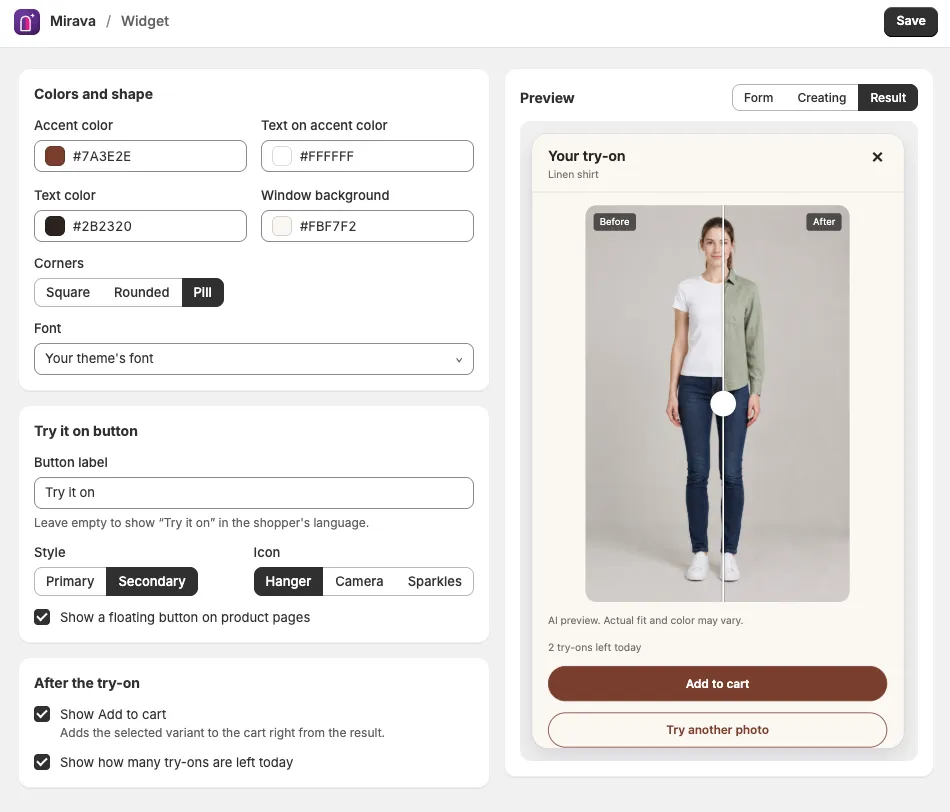
Mirava adds a Try it on button to your product pages. Shoppers upload a photo or pick a model and see your clothes and accessories on them in about a minute. You see the sales it brings.
How it works
The button sits right under Add to cart on every product page you choose, styled to match your theme.
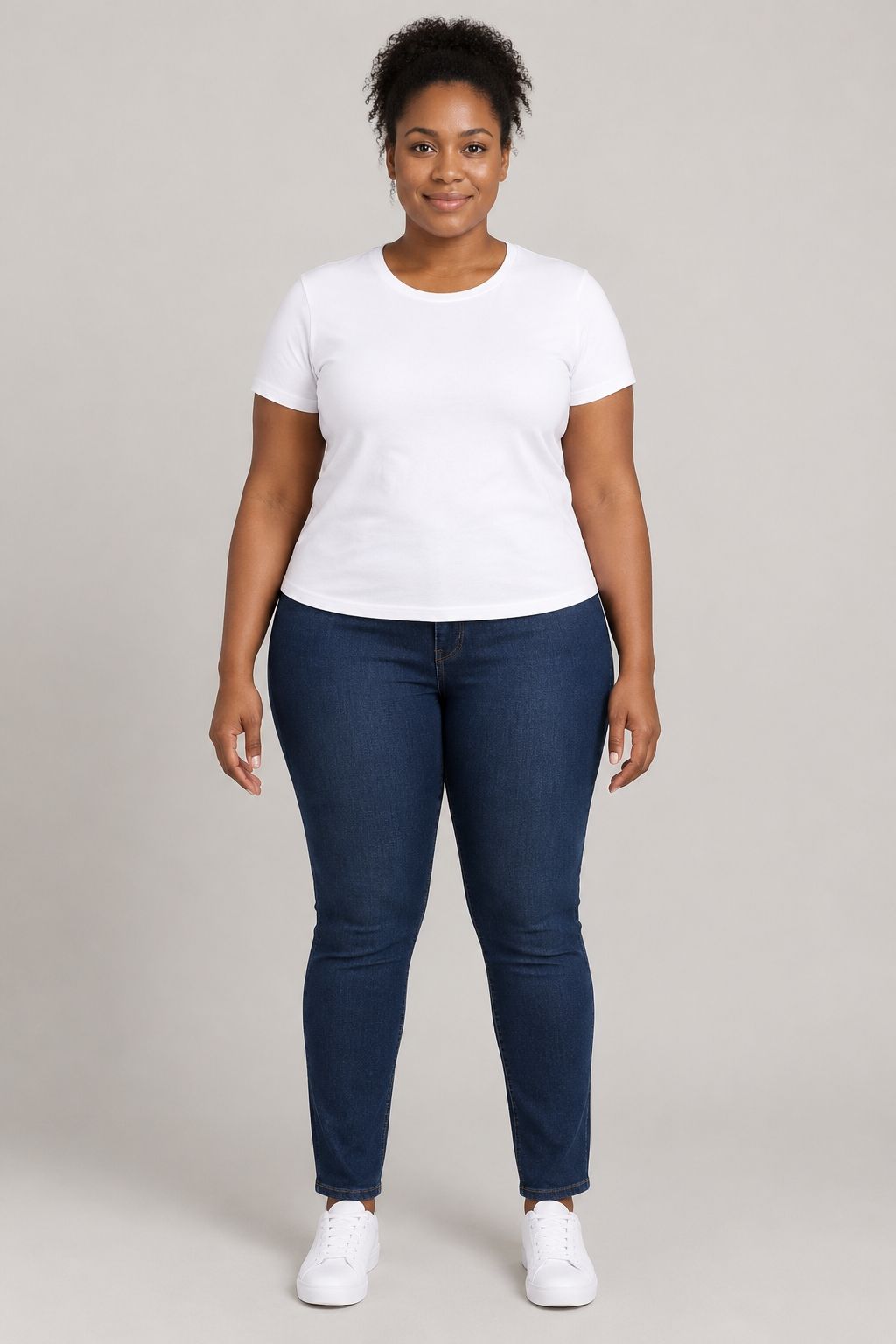
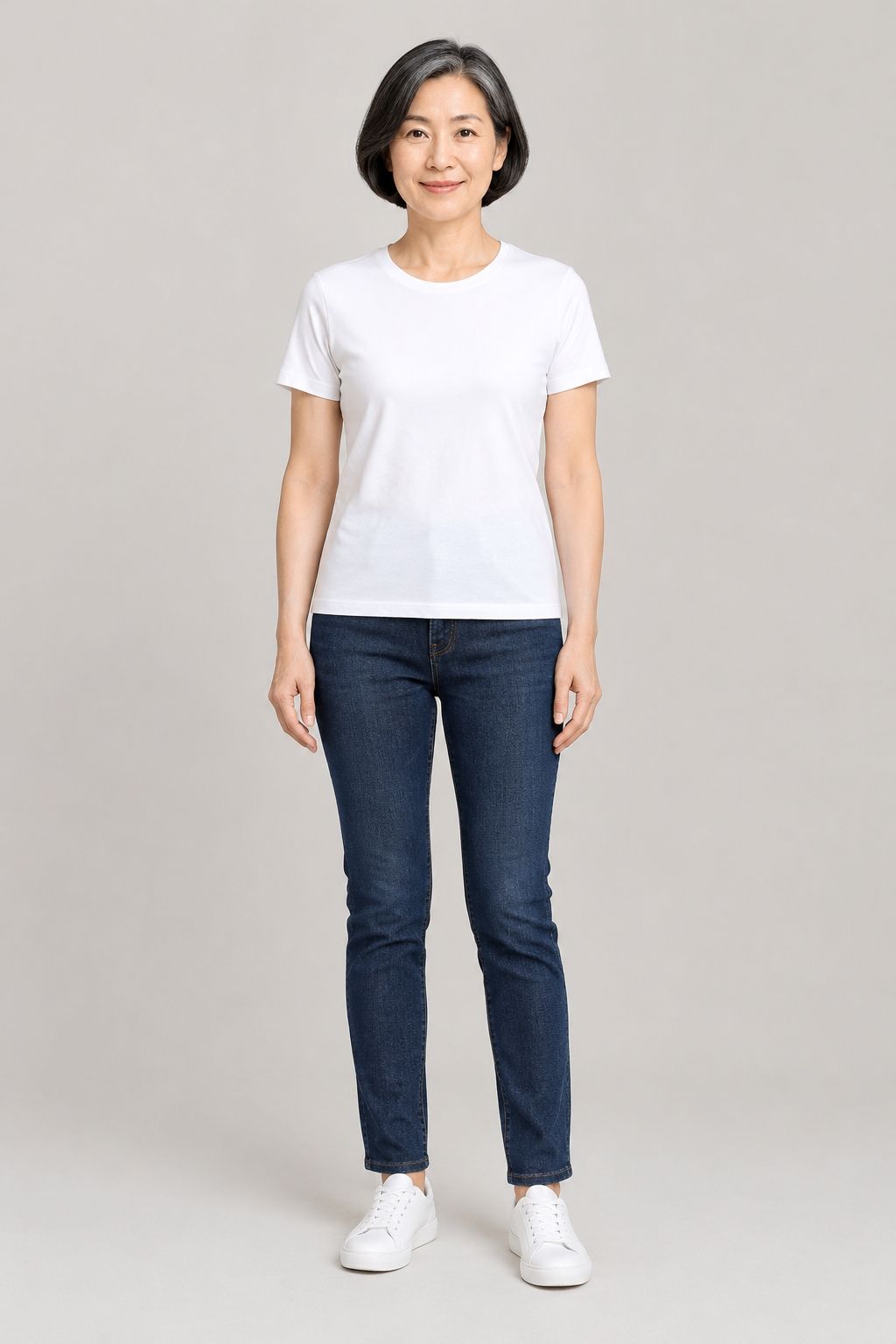
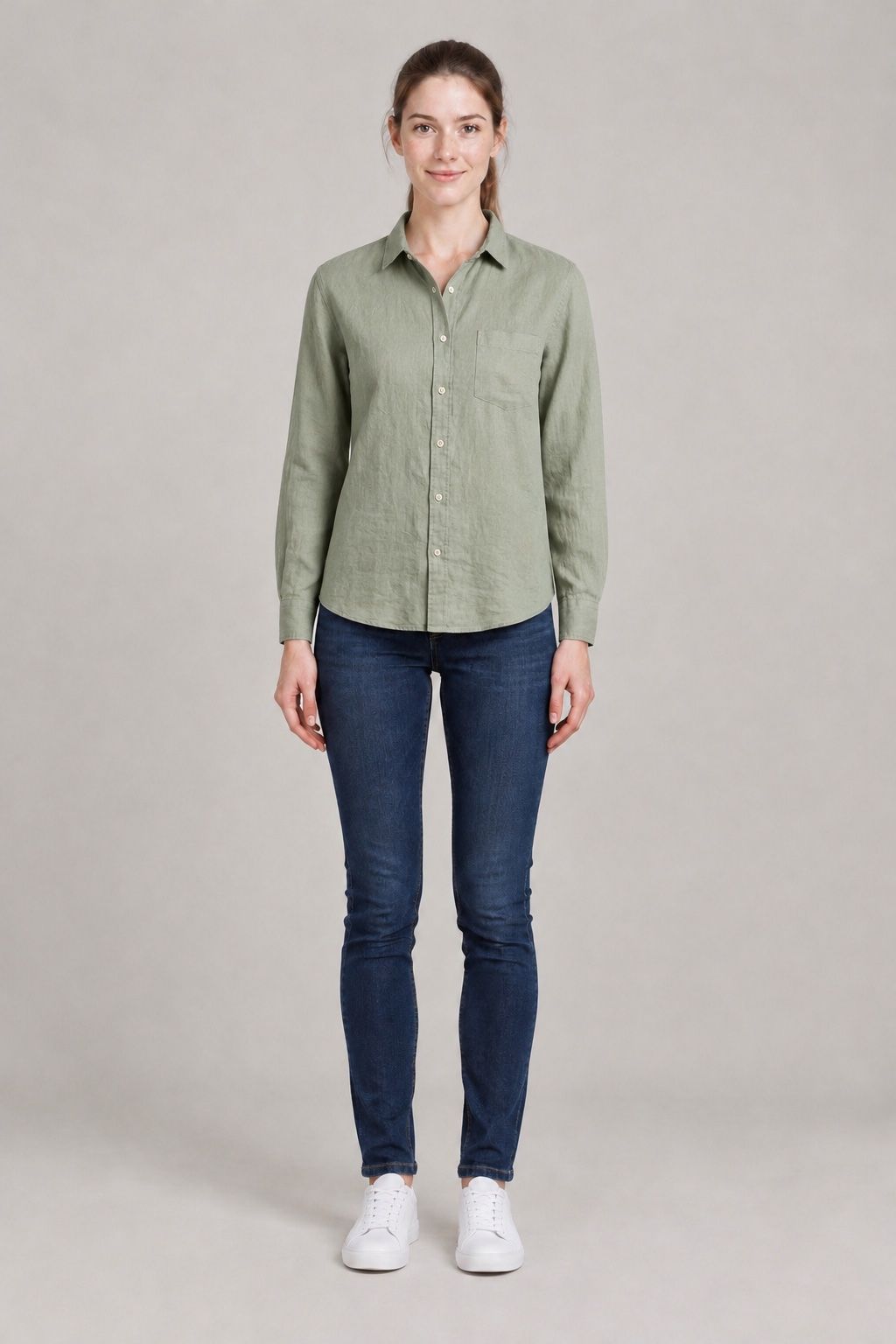
One photo of themselves, or one of eight ready-made AI models. Unsuitable photos are screened out before they use a try-on.
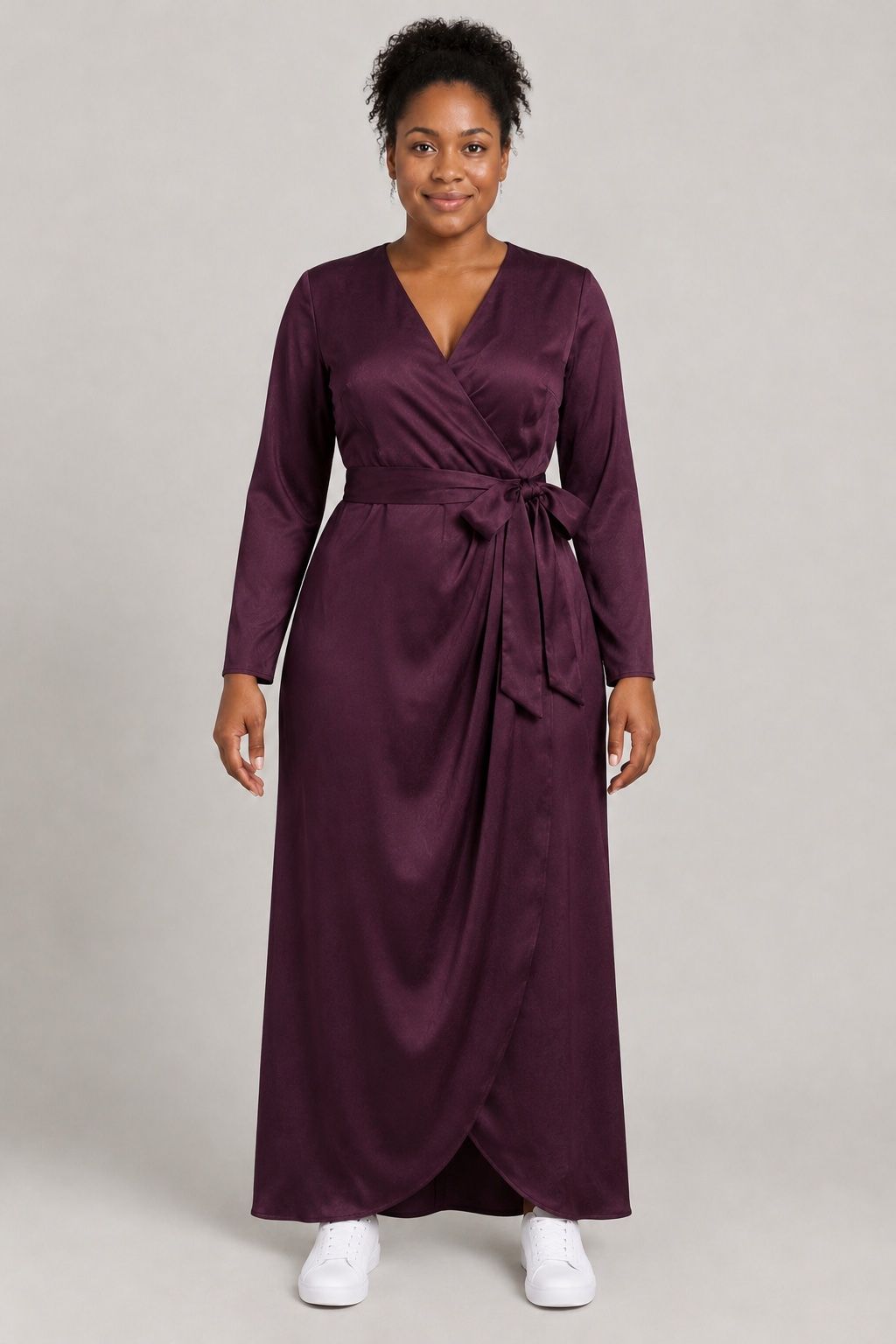
In about a minute your product appears on them. Face, pose and background stay the same, and Add to cart is one tap away.
Real results
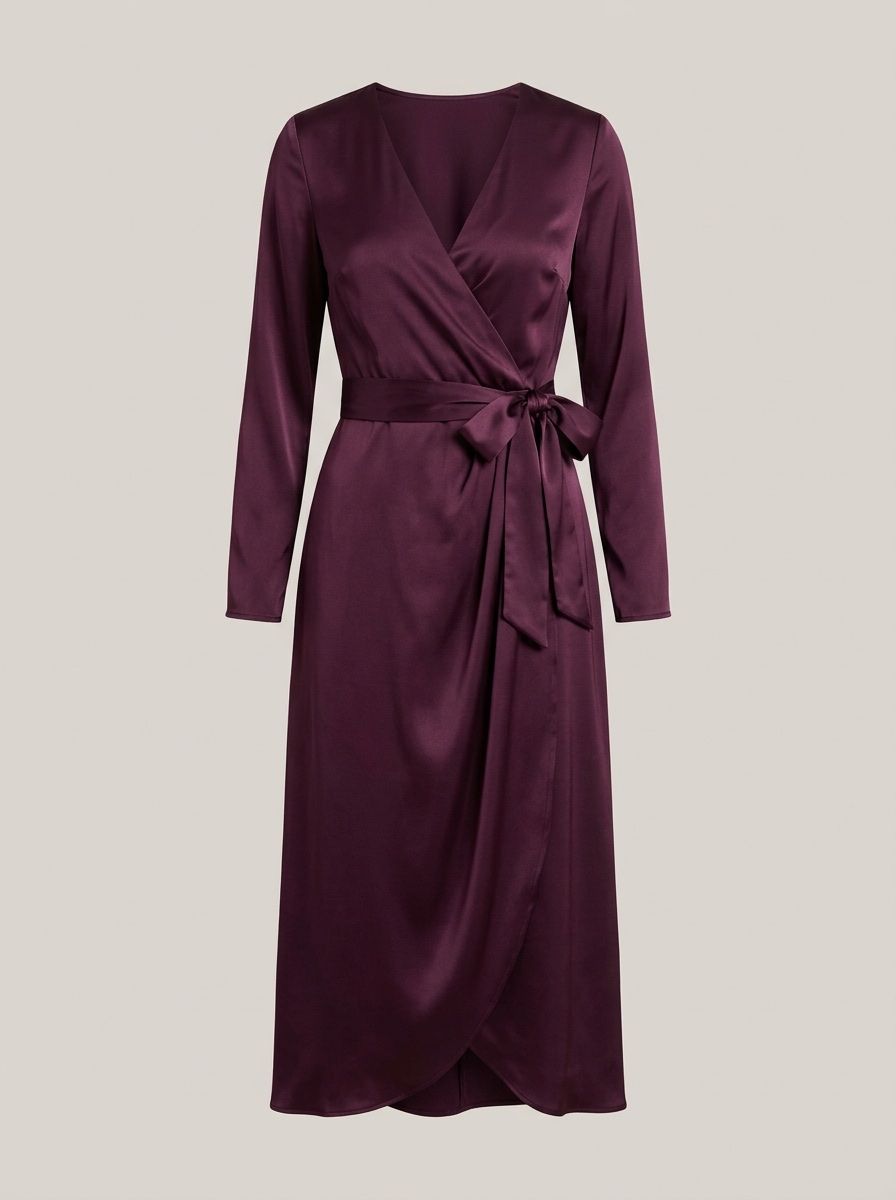
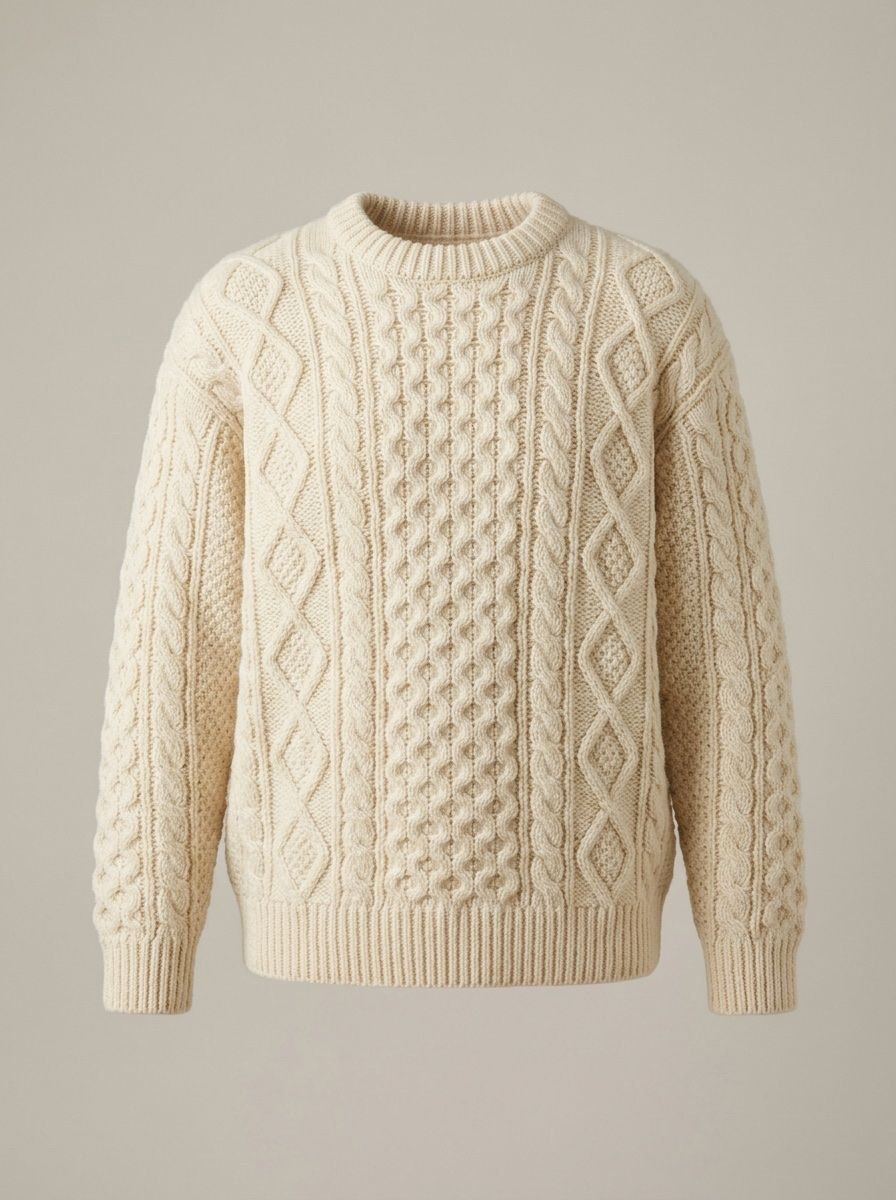
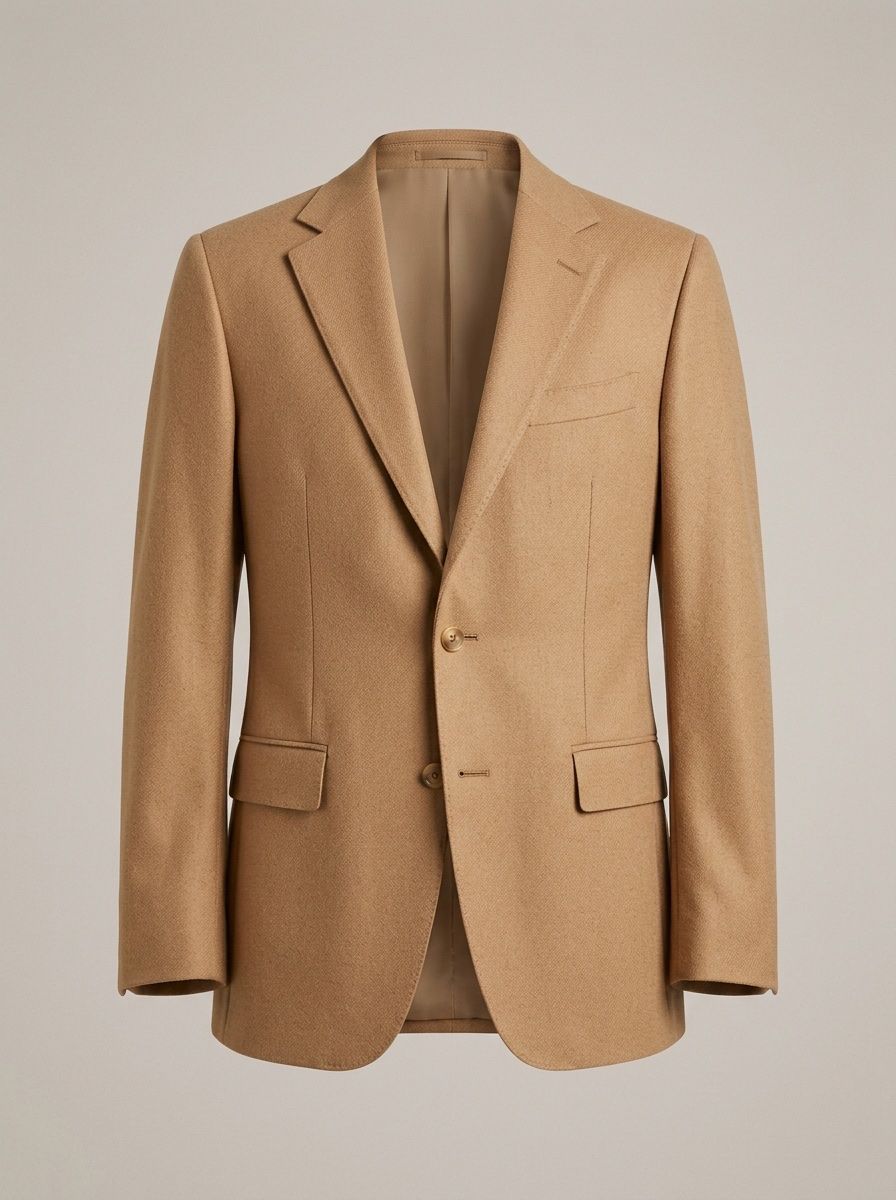
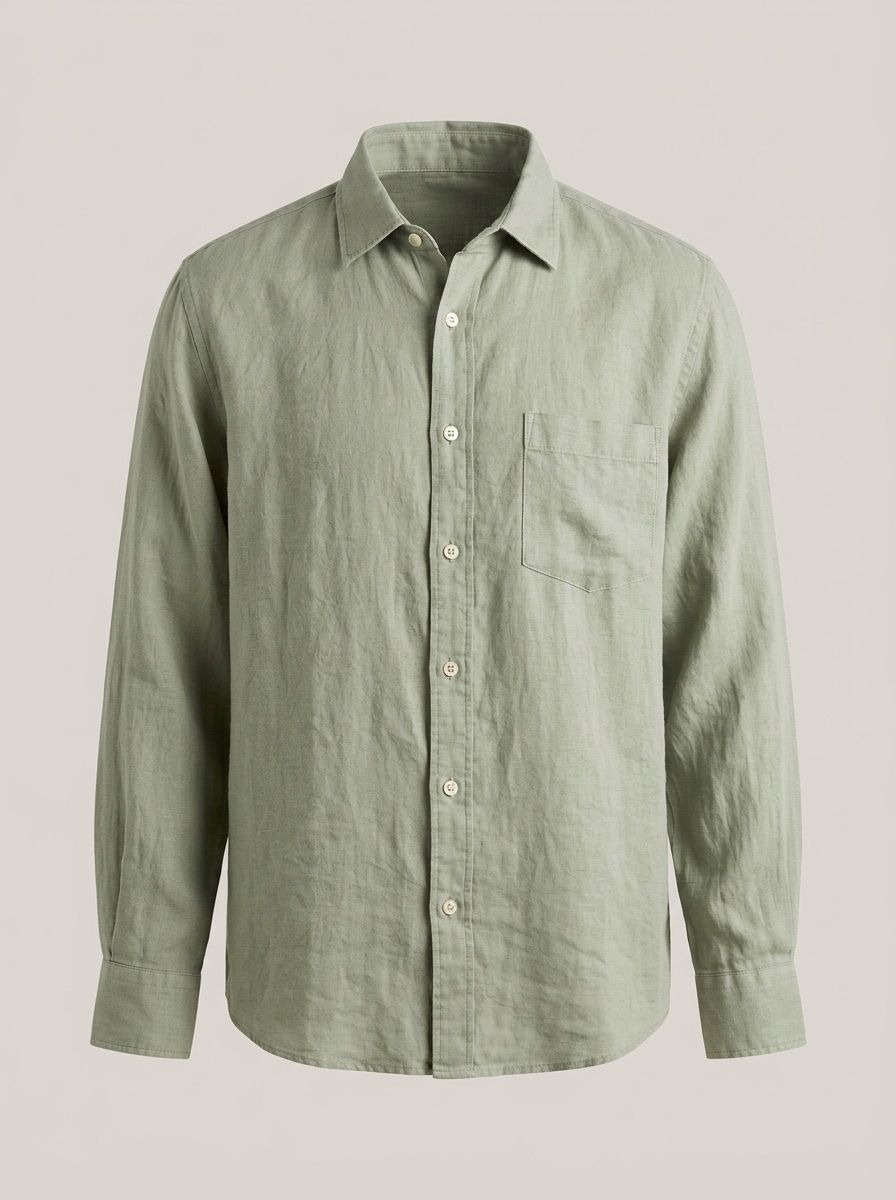
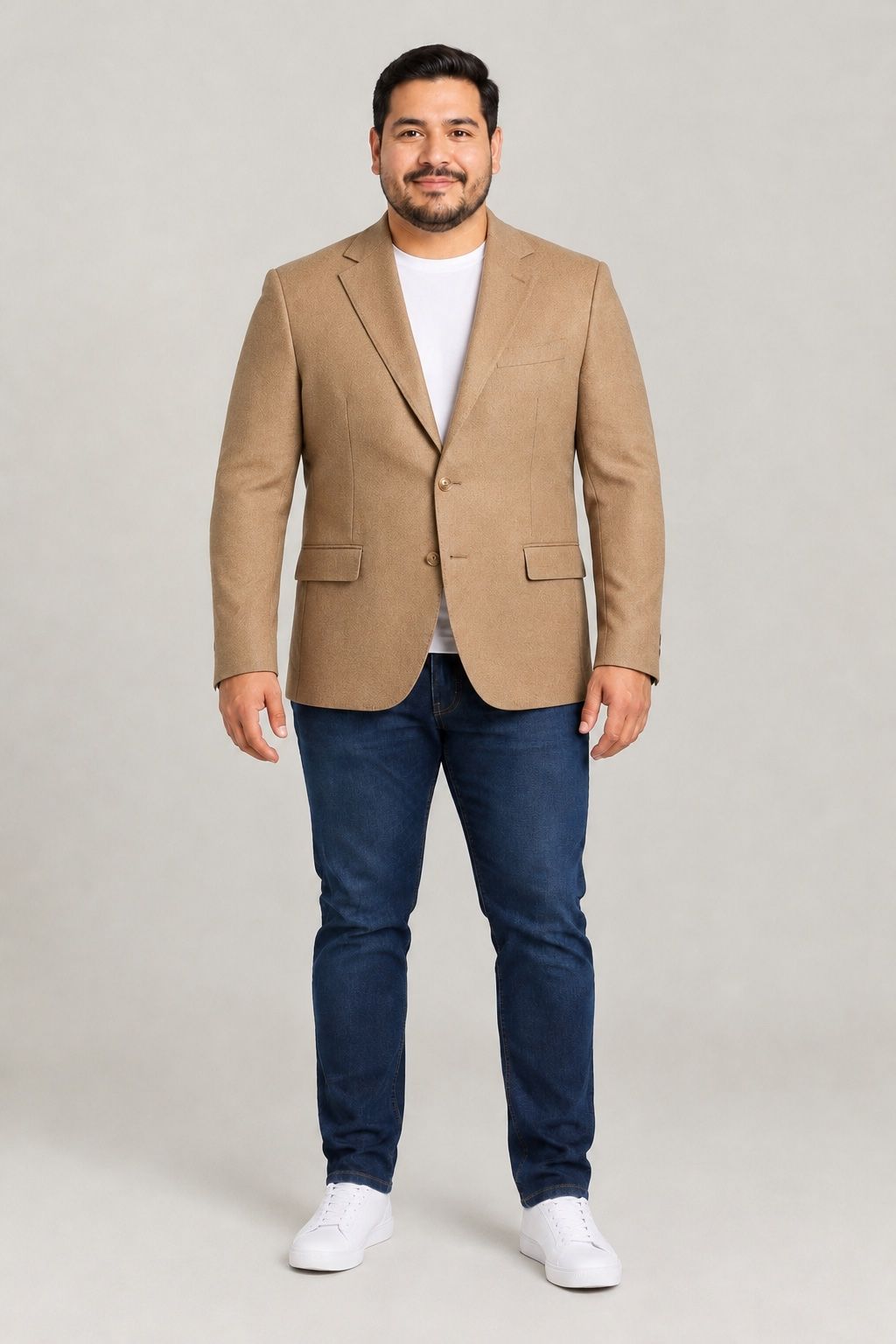
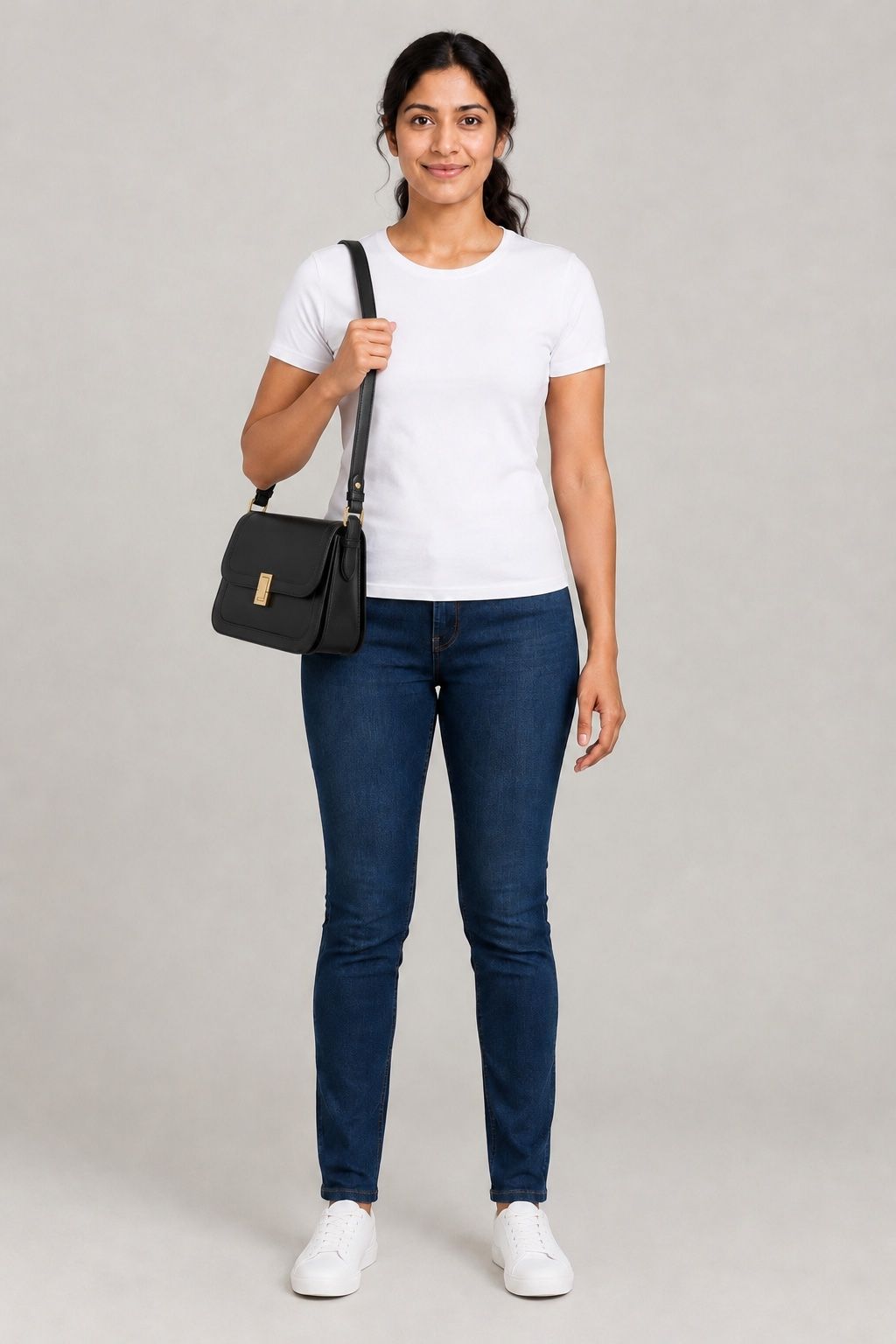
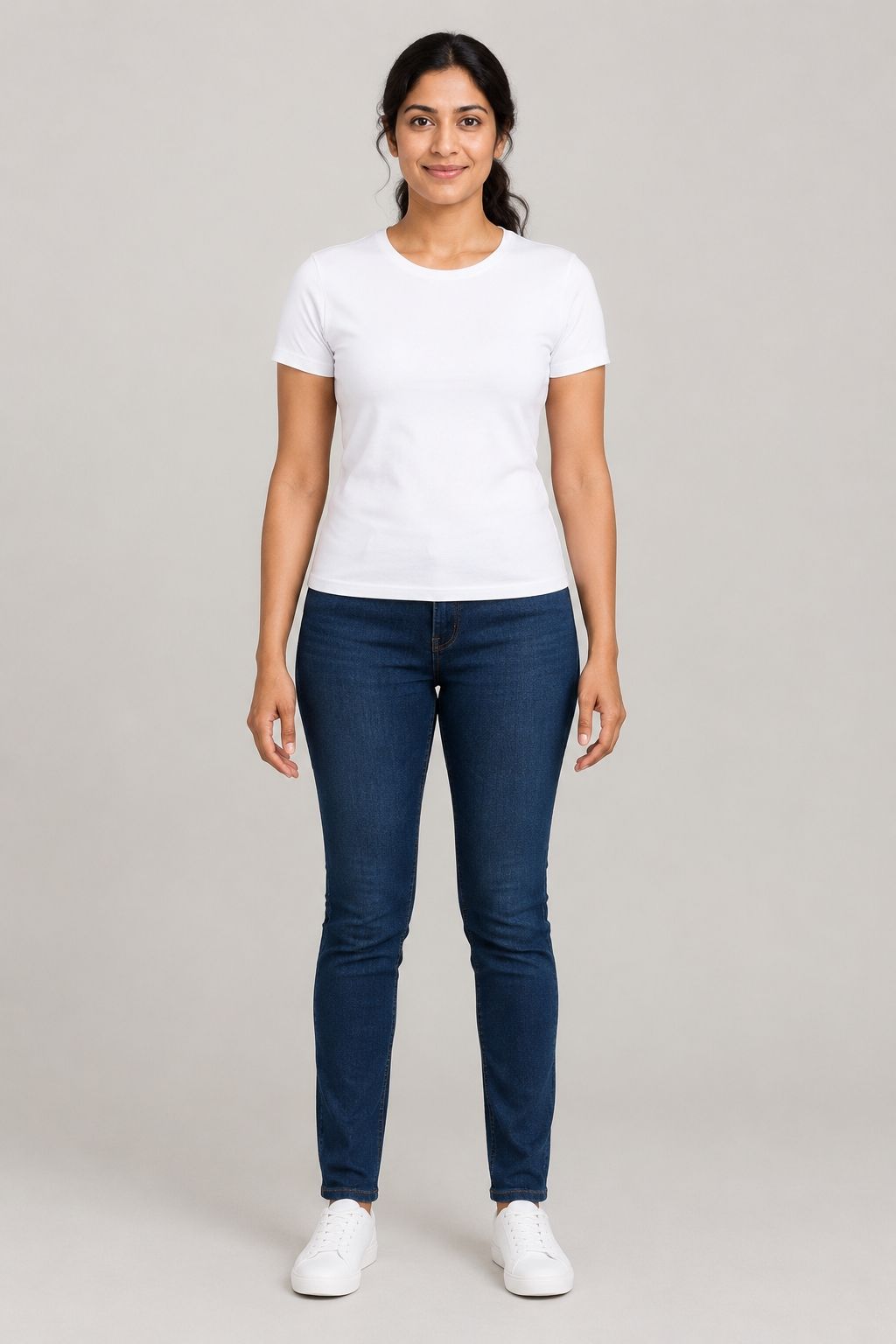
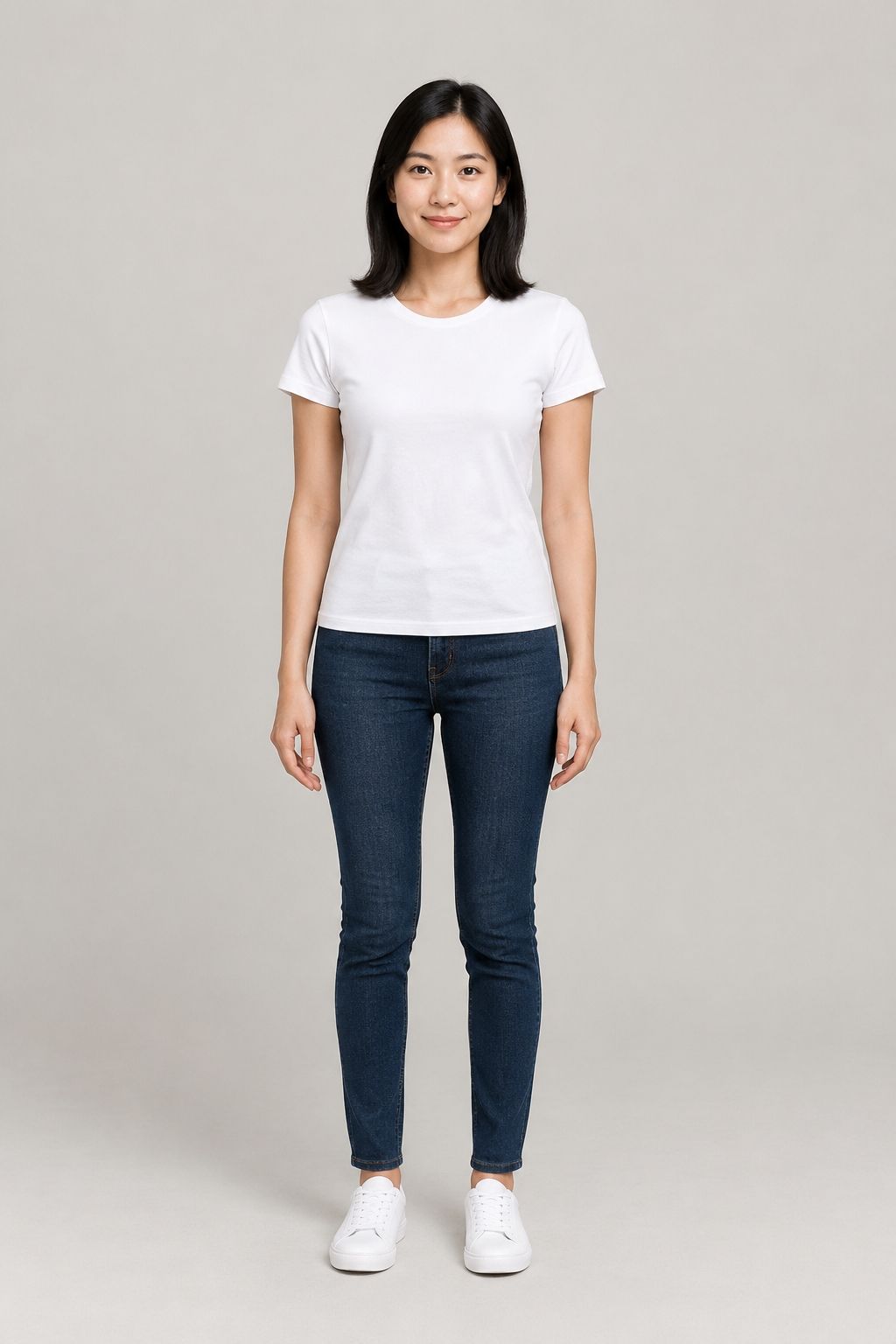
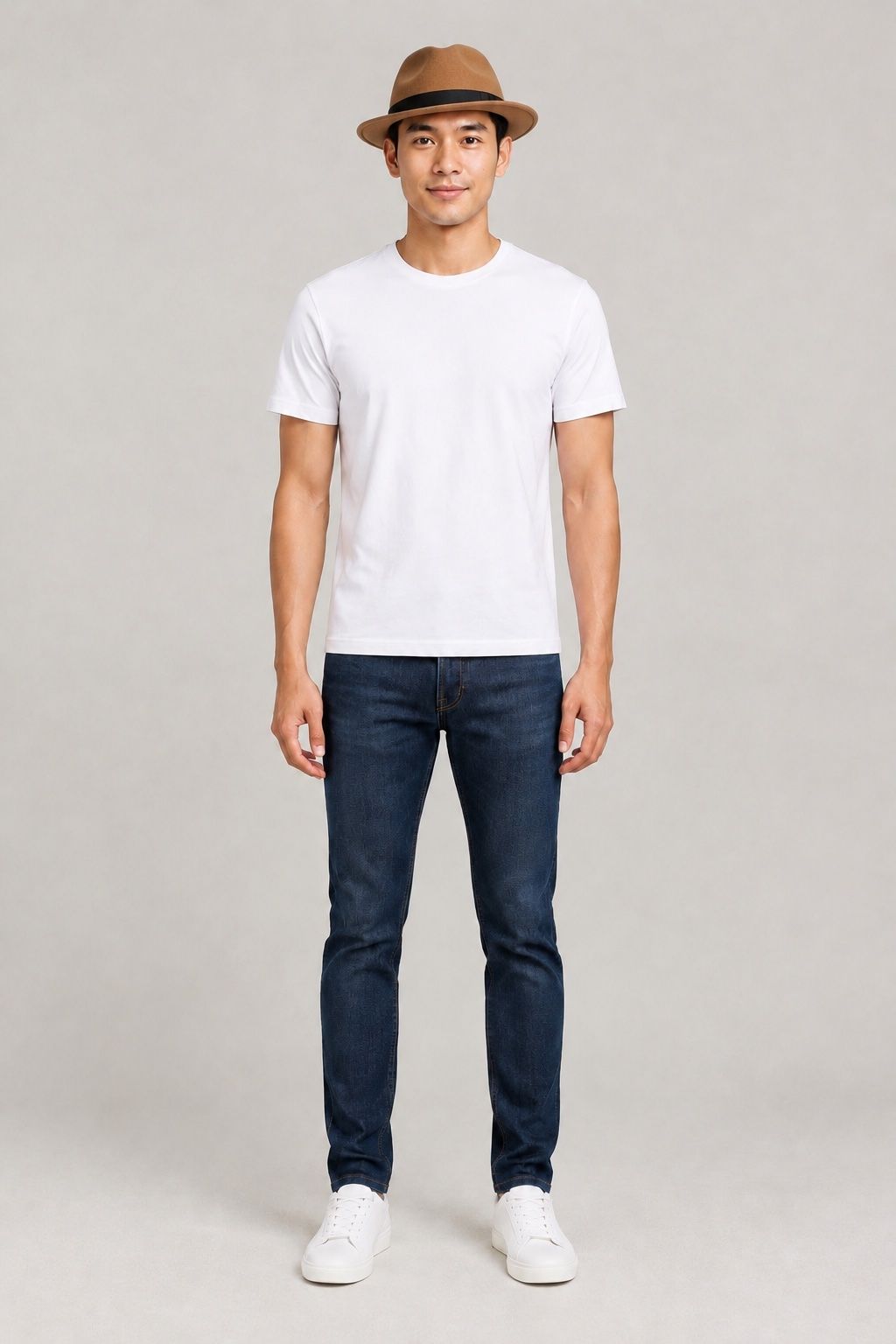
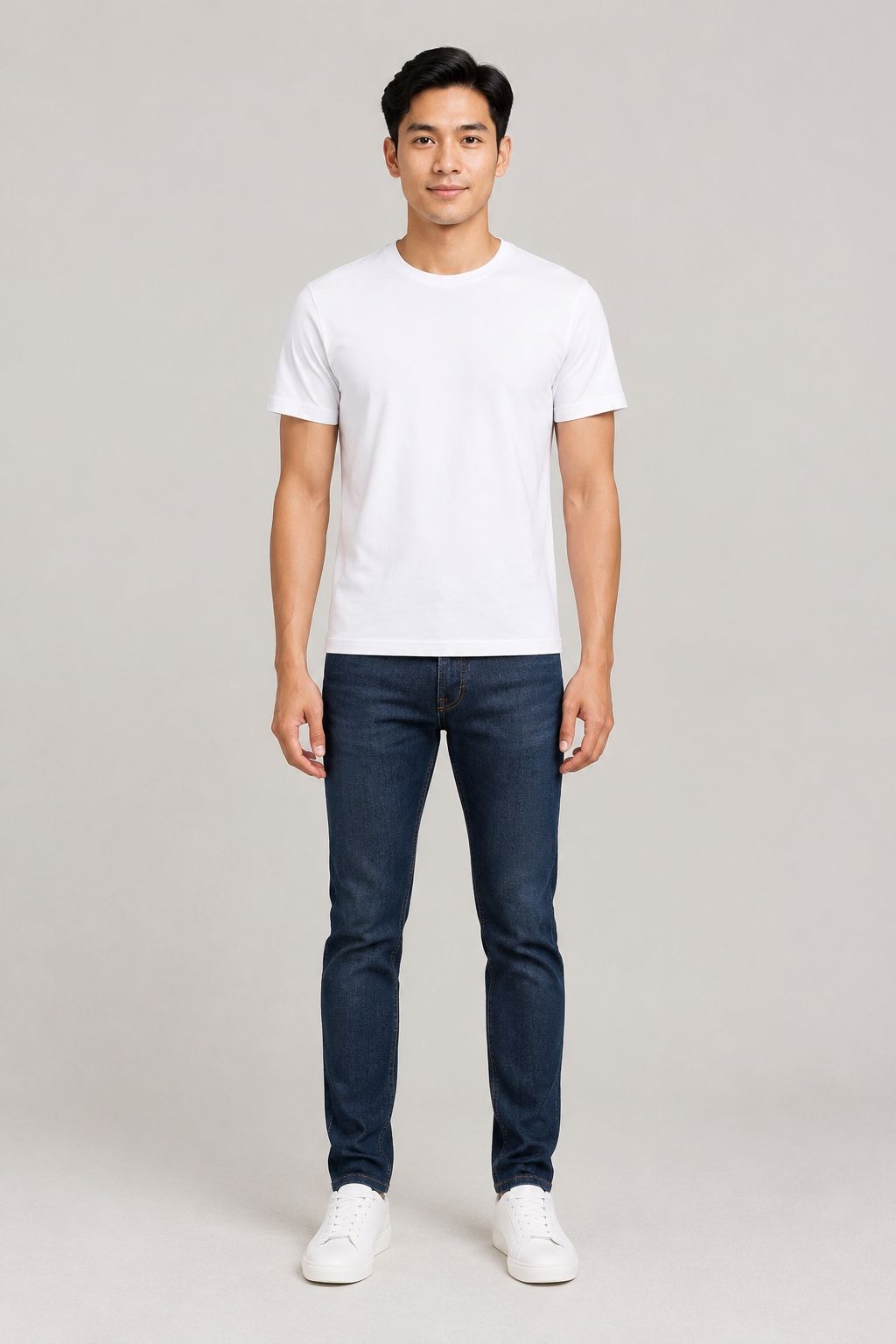
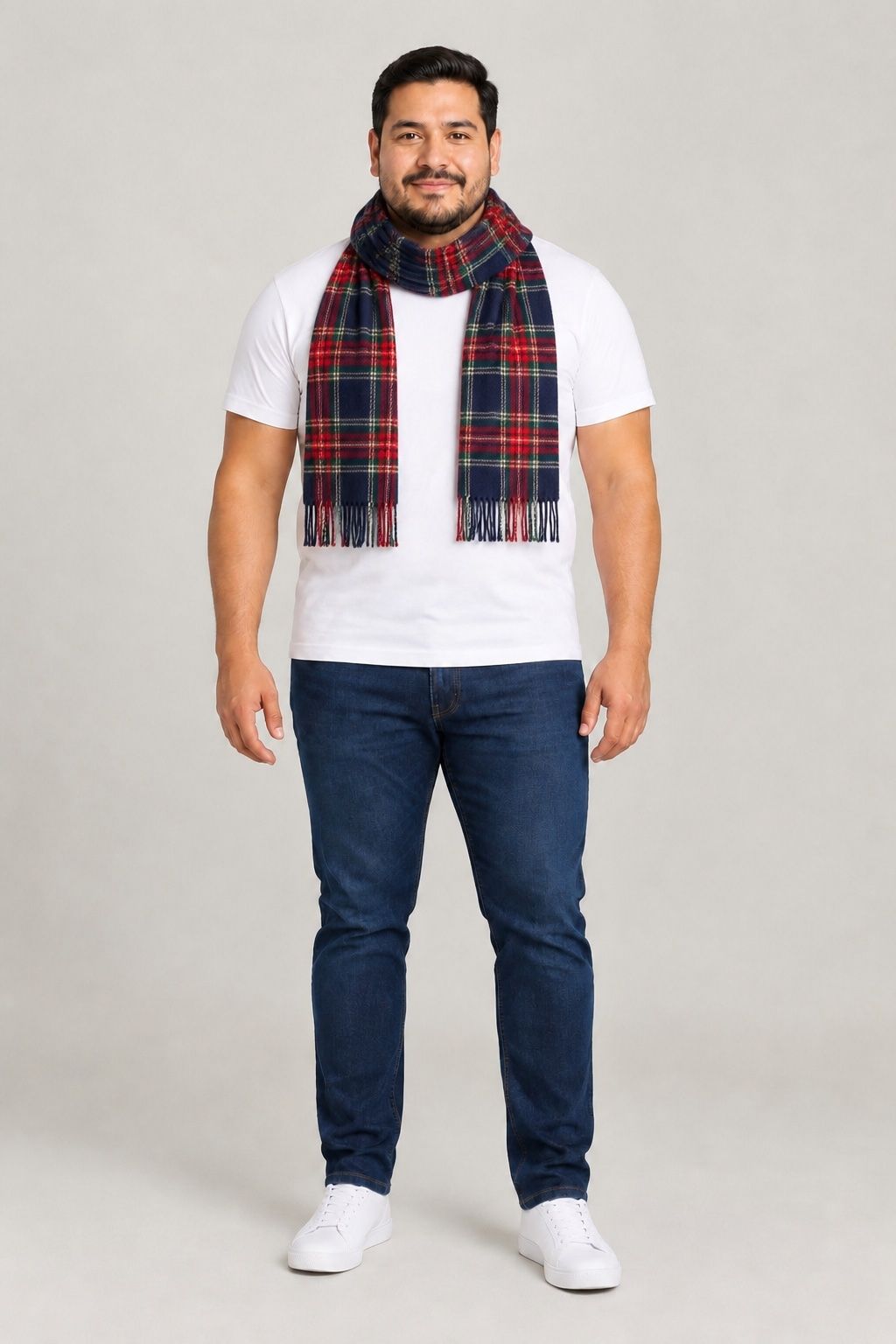
Clothing or accessories, the face, pose and background stay exactly as they were, so shoppers judge the product on themselves, not on a stranger in a studio. Drag the slider to compare.
Pick a product
Every image here is a real output of the model Mirava uses, on AI-generated models and products.
Ready-made models
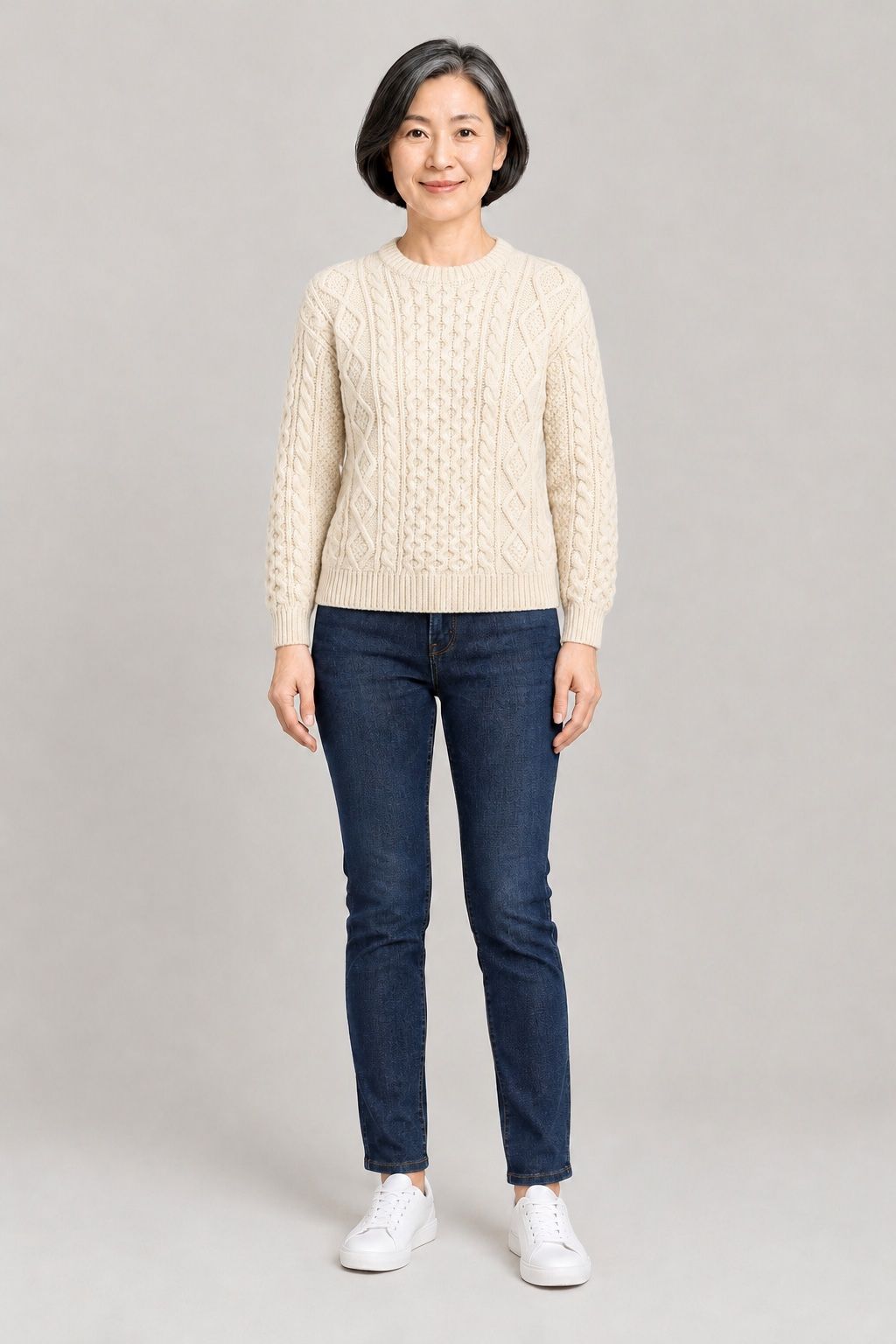
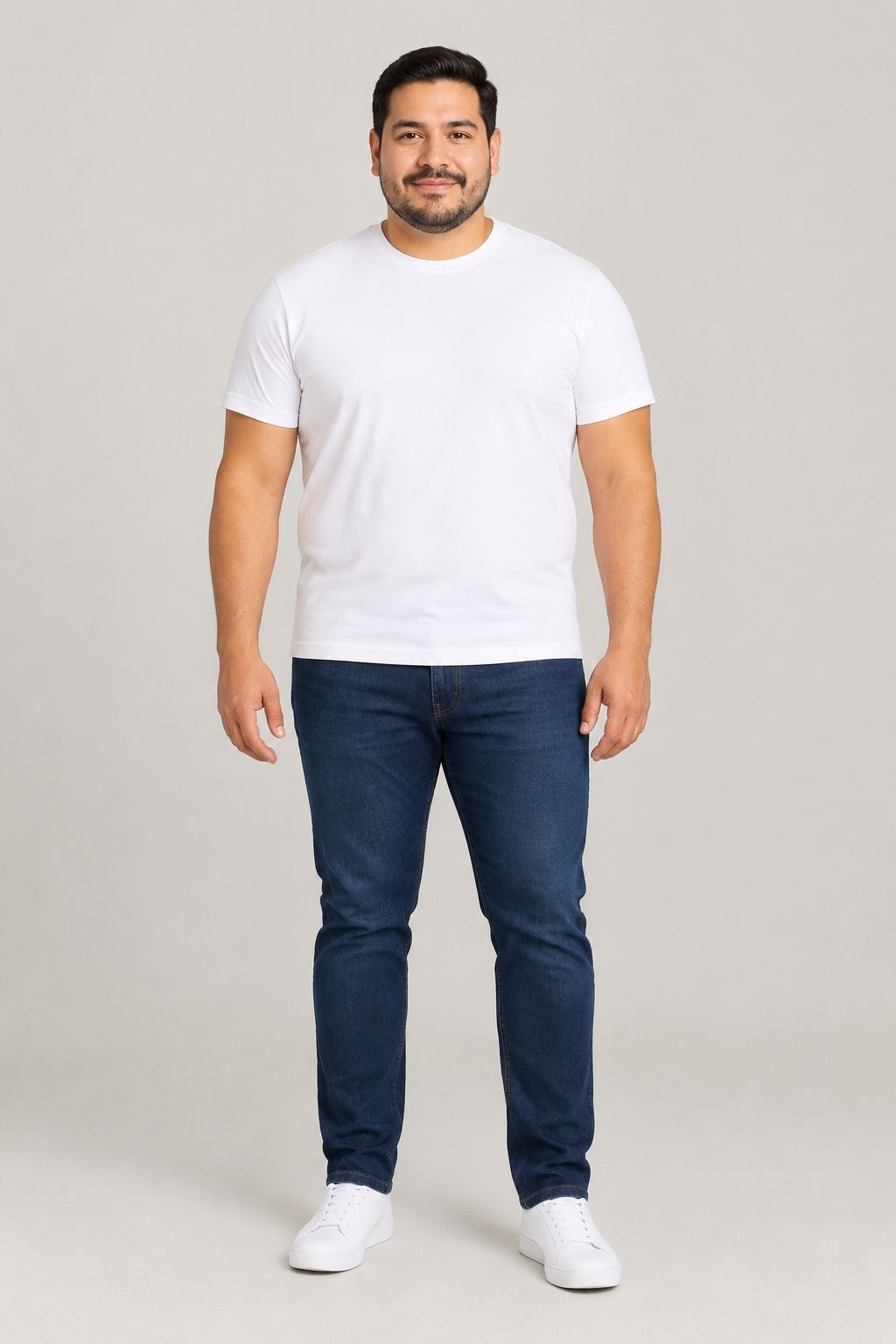
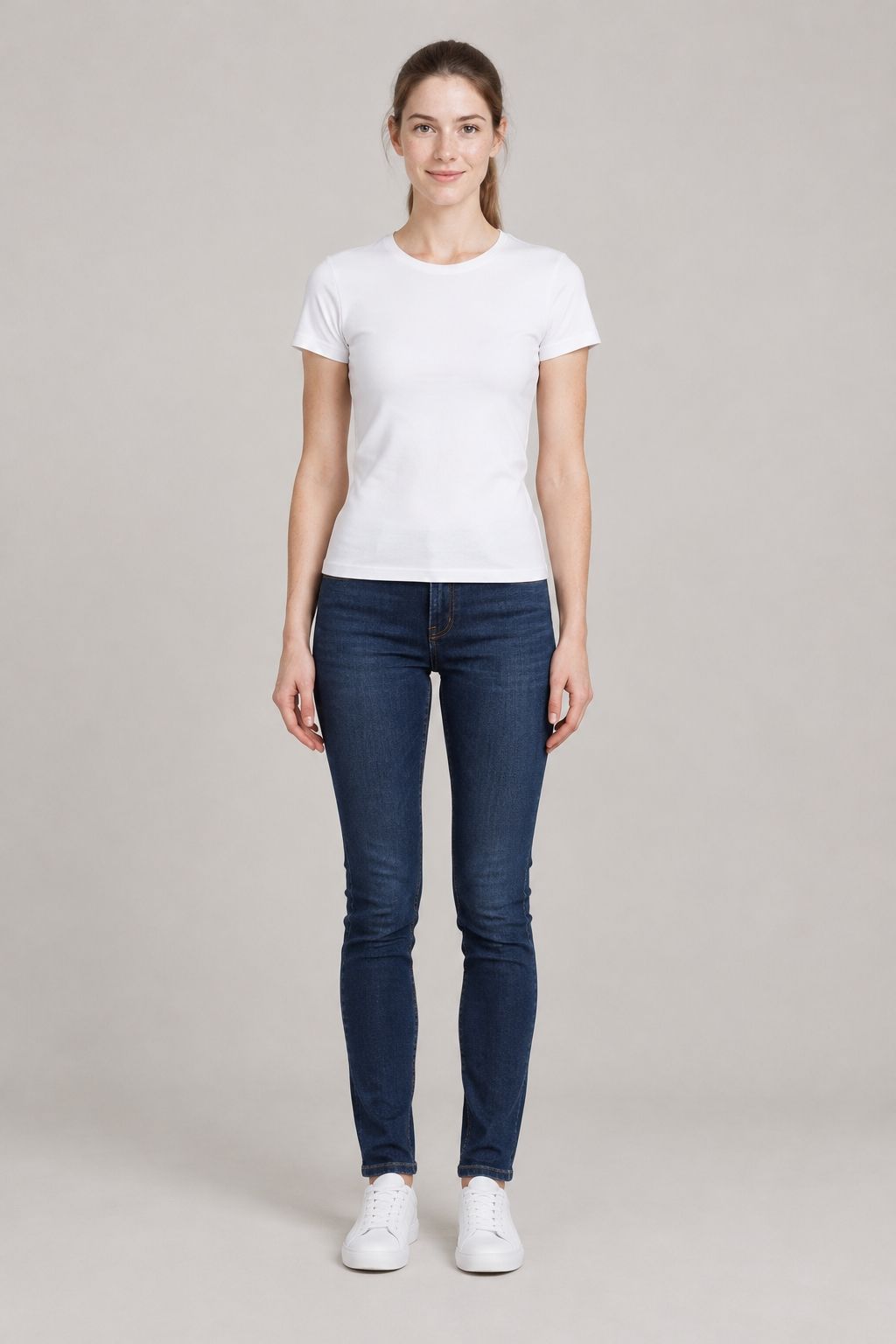
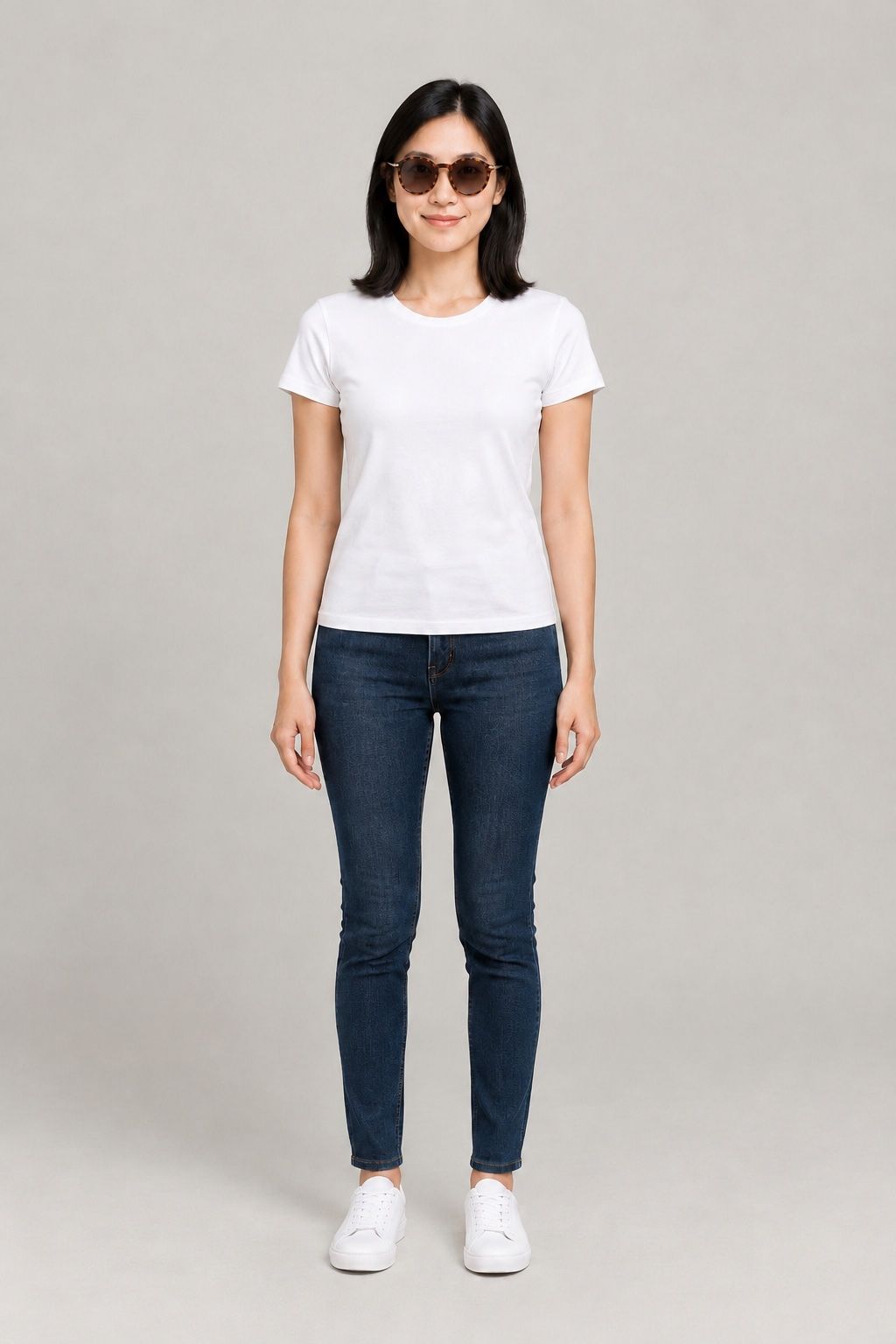
Many shoppers won't upload a selfie. They can pick one of eight AI models instead. Each product and model is generated once, then shows instantly to every shopper. On paid plans you can add your own models.
01 Amara
02 Linh
03 Diego
04 Emma
05 Priya
06 Minh
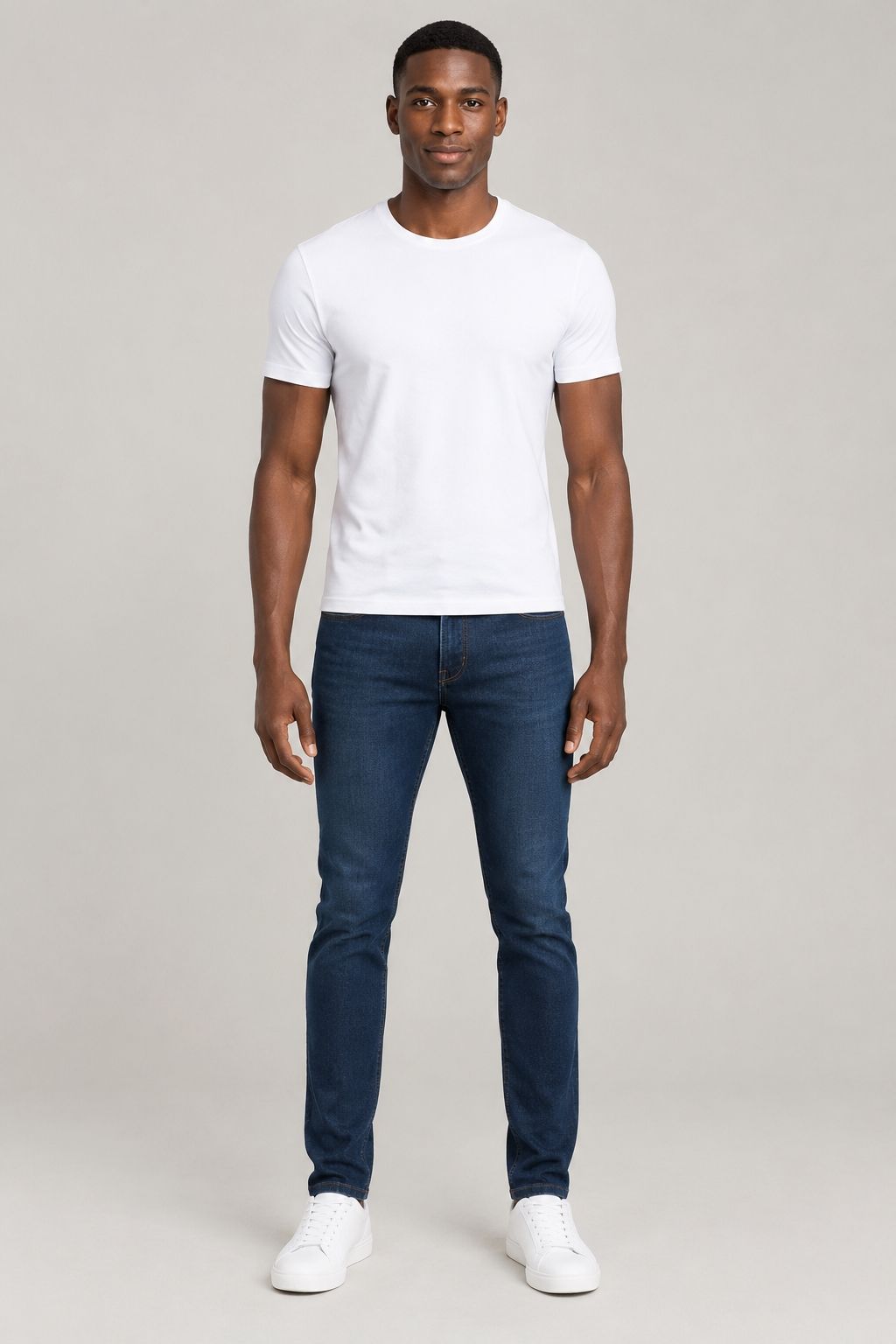
07 Kofi
08 Mai
Your own models
Upload models that fit your brand on Starter and up.
Built for merchants
Pick colors, corners, font, button label and icon. The live preview runs the same widget your shoppers see.
Daily limits per shopper and per store, plus a monthly cap. Try-ons stop at the budget you set.
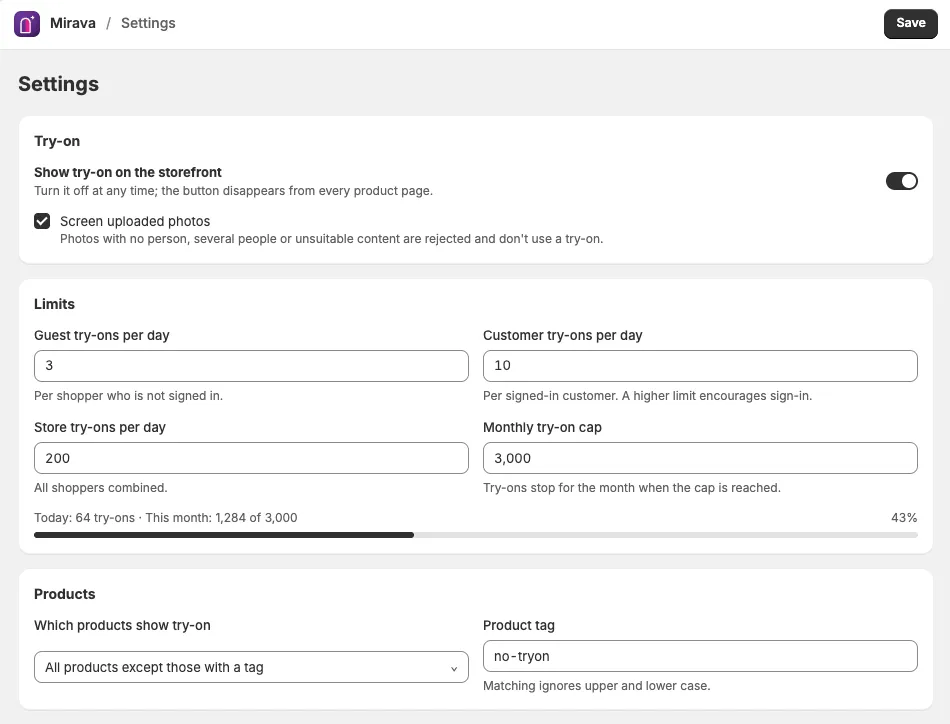
Photos with no person, several people or unsuitable content are turned away before they use a try-on.
The finished look comes with Add to cart for the selected variant, right where the decision happens.
An app block for Online Store 2.0 themes, or a floating button through the app embed for older themes.
When guests run out of try-ons they can sign in, or leave an email for bonus try-ons. It goes straight to your Shopify customers.
Measured, not guessed
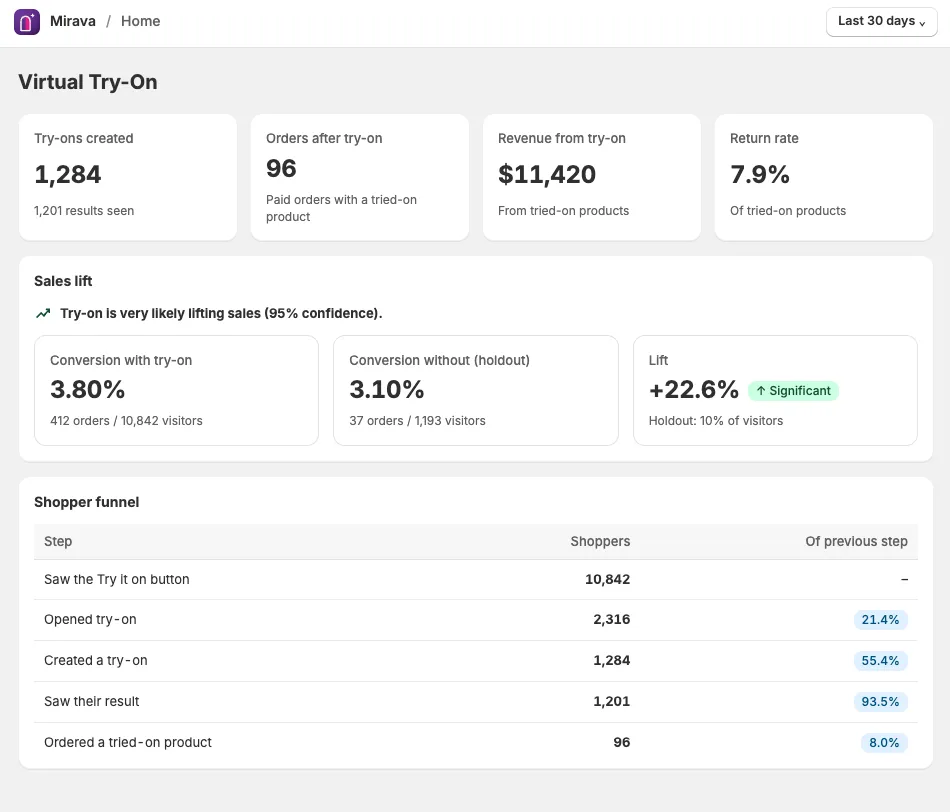
Industry averages won't tell you if try-on works for your store. Mirava's built-in holdout test will.
A share of visitors you choose never sees the Try it on button.
Conversion and revenue are compared between visitors with and without try-on.
The dashboard tells you when the difference is significant, not just bigger.
Holdout testing is included on Growth and Scale.
 Sample data
 Privacy by default
Shopper photos and results are removed automatically, however often a photo is reused.
Photos are used only to create the shopper's try-on, never to train AI models.
EXIF metadata, including GPS location, is removed in the shopper's browser before the photo is sent.
Customer data requests and redaction webhooks from Shopify are processed automatically.
Pricing
Every plan includes the Try it on button, ready-made models and widget styling. Billed through Shopify.
Try virtual try-on on your store.
$0 forever
Install freeFor stores starting to sell with try-on.
$19 / month
Start with StarterProve the sales lift and scale try-on.
$49 / month
Start with GrowthHigh-traffic stores.
$149 / month
Start with ScalePaid plans can turn on extra try-ons at $0.05 each after the included amount. Extra try-ons stop at the monthly budget you set in Settings. All charges appear on your Shopify invoice.
Guides and articles
Mirava adds a Try it on button to your product pages. A shopper uploads a photo, or picks a ready-made AI model, and sees your product on them in about a minute. Only the product changes; face, pose and background stay the same.
Clothing: tops, shirts, knitwear, dresses, pants and skirts, matching sets and outerwear. Accessories: bags, hats, sunglasses and glasses, scarves, shoes and jewelry. For eyewear the try-on shows the style, not how the frame fits, and shoes work best with a full-length photo. You can show the button on every product, or include or exclude products with a tag.
Yes. Online Store 2.0 themes get a Try it on app block you can place under Add to cart. Other themes can use the app embed with a floating button. Colors, corners, font and button style match your store, with a live preview.
Photos and results are deleted within 24 hours and never used to train AI models. Location data (EXIF) is removed in the browser before upload. Unsuitable photos are screened out before they use a try-on.
You set daily limits for guests and signed-in customers, plus a monthly budget. Paid plans can allow extra try-ons at $0.05 each, which stop at the budget you set. Everything is billed on your Shopify invoice.
On Growth and Scale, a built-in holdout test hides try-on from a small share of visitors and compares conversion and revenue between the two groups, so you see the effect on your own store instead of an industry average.
Yes. The Free plan includes 30 try-ons a month, the Try it on button, eight ready-made AI models and funnel analytics. Upgrade when you need more try-ons or the sales-lift test.
Install Mirava, add the Try it on block to your product page, and see your first try-on in minutes. Free plan included.